
Five ways to monitor website changes, from a browser refresh to AI-summarized alerts. Which one fits your use case, and what each method actually costs.

How to Monitor Website Changes
Somebody on your team is checking a web page on a schedule. Maybe it is a compliance analyst opening 40 agency bookmarks every Monday. Maybe it is a product manager refreshing a competitor's pricing page before the Tuesday standup. Maybe it is a legal ops lead watching a vendor's sub-processor list in case a new AI company gets added.
Whoever it is, they are doing a job a computer should be doing.
This guide walks through the five real ways to track website changes, from the duct-tape browser setup most people start with to the AI-summarized feeds that serious teams run on. Each method has a genuine use case, a genuine price, and a point where it breaks. I will tell you which is which.
In this guide:
- Why people monitor websites (the use cases that actually pay)
- The 5 methods, ranked by effort and reliability
- What to watch on a page, not just whether it changed
- How to set up monitoring in 15 minutes
- The things that quietly break monitoring and how to spot them
Why Monitor a Website in the First Place
Before picking a tool, pick a use case. The method that works for one barely works for another.
The common ones:
- Regulatory and policy monitoring. Government agencies update guidance, enforcement priorities, and rulemaking dockets on their websites every day. Most of it never hits Westlaw. See regulatory change management for the wider workflow.
- Competitor intelligence. Pricing pages, product pages, feature flags in the nav, job postings, case studies. Competitors ship changes constantly and almost nobody writes a blog post about it.
- Vendor policy drift. Terms of Service, Data Processing Agreements, sub-processor lists. Fewer than one in four SaaS vendors emails you when these change. Our guide on how to monitor terms of service changes goes deep on this.
- Legal and court research. Court opinion pages, docket status pages, consultation responses. Law librarians have been hand-checking these for decades.
- Product and stock tracking. Restock pages, concert ticket listings, real estate listings, grant deadlines.
- Internal change detection. Your own marketing site, documentation pages, pricing page. Useful for catching a broken deploy or an unexpected edit.
The use case tells you what "a change" means. A competitor pricing tweak is one signal. An entire product page rewrite is another. A new line in a sub-processor table is a third. The tool should match the question you are actually asking.
Paste a URL. We'll do the rest.
Changeflow monitors the page and tells you what changed and why it matters.
Free plan available. No credit card required.
The 5 Methods, Ranked
Ranked worst to best by a blunt mix of reliability, effort, and cost at scale.
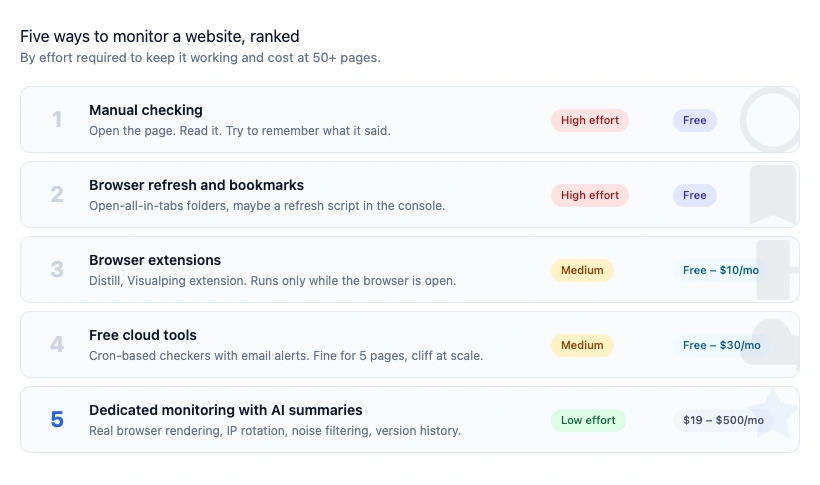
1. Manual Checking
Open the page. Read it. Try to remember what it used to say.
This is how most people start and how almost nobody should finish. It works for one page you care about a lot. It falls apart at three. By ten pages it is somebody's full-time job, and they are still missing changes because human diffing of prose is brutal.
Cost: zero in dollars, high in attention. Reliability: poor. Use it only for the one page you stare at every day anyway.
2. Browser Refresh and Bookmarks
Slightly better. Bookmark folders, open-all-in-tabs, maybe a browser extension that auto-refreshes. Some people write tiny scripts using the Fetch API or MutationObserver to diff a page inside a tab.
This is a step up because you are at least looking at all the pages in sequence. It still requires you to remember what changed, and it only fires while the tab is open. Leave the laptop closed for a week and you miss the week.
Cost: still zero. Reliability: only slightly better. Use it if you have five or fewer pages, all of them on sites that actually let bots in, and you check every morning.
3. Browser Extensions
Distill Web Monitor, Visualping's Chrome extension, Wachete's. Install, click a region of the page, set a check interval, get a desktop notification.
Extensions are the gateway drug of website monitoring. They are genuinely free, they work in two clicks, and they use your actual browser so they handle login-gated pages without fuss. That last point matters: if you need to monitor a page behind an SSO or a paywall, the extension is sometimes the only thing that works.
The tradeoff is that they only run while the browser is open. Close the tab, miss the change. Close the laptop, miss the week. They also tend to cap out at 25 to 50 pages before the browser gets sluggish. Fine for a personal tracker, not a team tool. See our comparison of Distill.io alternatives for the typical upgrade path.
Cost: free to ~$10/mo. Reliability: medium, but only while the browser is running.
4. Free Cloud Tools
Visualping free tier, Wachete free, changedetection.io if you self-host. These run on a server, check the page on a schedule, and email you when something changes.
This is where most people end up after outgrowing an extension, and for a handful of pages it works well. You get proper email alerts, screenshot diffs, and a few pages a week of coverage. No browser required. No laptop required.
The cliff is usually the free tier itself. Free plans typically cover 5 pages at daily frequency. Page 6 costs money. Hourly checks cost money. Multiple users cost money. AI summaries, where available, cost money. Once you are paying, you are on the dedicated-tool tier anyway.
Cost: free up to 5 pages, ~$10 to 30/mo above that. Reliability: good for flat HTML pages, weaker on JavaScript-heavy sites and paginated feeds.
5. Dedicated Monitoring With AI Summaries
This is where change detection stops being a novelty and starts being infrastructure. A real monitoring stack does four things extensions and free tools mostly cannot:
- Renders the page in a real browser, so it handles React, Vue, and heavy JavaScript without blanks.
- Handles PDFs, paginated lists, and login-gated pages, not just plain HTML.
- Filters noise using AI, so you get told what changed in plain English instead of a diff of every timestamp and cookie banner.
- Keeps a version history, so when the CFO asks "what did this page say in March?" you can actually answer.
Changeflow is the flavor we built. Visualping, Fluxguard, and Versionista are the other main options. Pricing typically starts at around $99 per month for professionals and scales to several hundred per month for serious teams. That feels like a lot until you do the math on the compliance analyst's morning. Forty pages times five minutes times 250 work days is 833 hours a year, and human diffing still misses changes.
This is also the only method that scales. Monitoring 5 pages is easy. Monitoring 500, with login, with JavaScript rendering, with summaries your lawyers will actually read, needs real plumbing.
What to Watch, Not Just Whether It Changed
The beginner mistake is treating "the page changed" as the signal. Pages change for a hundred reasons that do not matter: rotating featured content, cookie banners, Cloudflare challenges, footer copyright years.
A better monitor watches the interesting part of the page. There are three ways to do this:
-
CSS selector. You tell the tool "only watch
#pricing-table". It ignores everything outside that selector. Works well on stable templates, breaks the moment the dev team renames a div. - Keyword match. You tell the tool "only alert me if the words 'GDPR', 'sub-processor', or 'retention' appear". Works well for known vocabulary. Misses anything phrased differently.
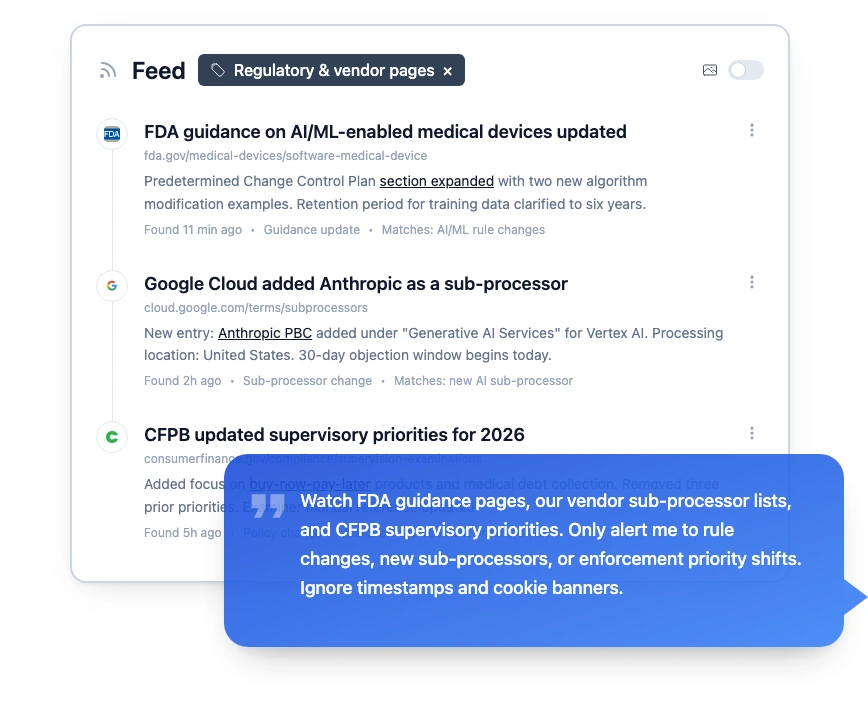
- AI-described change. You tell the tool "alert me when the sub-processor list adds a new vendor or changes a vendor's processing location". The AI reads the page and judges whether your criterion was met. Slower and more expensive per check, but the noise cancellation is orders of magnitude better.
For most business use cases, AI-described monitoring is the only method that survives contact with real pages. Pricing pages have trialware banners. Government pages have "last updated: {today}" timestamps. Vendor pages have rotating testimonials. If you are alerting on every diff, you are training yourself to ignore alerts.
How to Set Up Monitoring in 15 Minutes
Pick one page first. The biggest mistake teams make is dumping 80 URLs in on day one and then drowning in alerts. Start with one.
The steps, generic to most tools:
- Pick the page. One page. The single most expensive page for you to miss a change on. A regulator, a vendor, a competitor. One.
- Identify the region of the page that matters. Scroll past the nav, the footer, the cookie banner. What is the actual text block you care about?
- Describe what a meaningful change looks like. "Any new sub-processor" or "Any price change on the Professional tier" or "Any new guidance document". Write this down. You will paste it into the tool.
- Set a check frequency. Daily is the sane default. Hourly if the page is a court opinion feed or a breaking-news-style regulator. Weekly is almost never right.
- Set the notification channel. Email first. Slack later. Do not start with webhooks, you will regret it.
- Wait 48 hours. You want to see one real alert and one baseline "no change" cycle before you add the second page.
Once the first page is quiet and accurate for a week, add the next five. Then the next twenty. Most teams settle at 30 to 200 tracked pages.
How Teams Use Changeflow for This
A law firm's practice support team watches 80 regulator pages plus 50 vendor DPAs. A pharma regulatory affairs group tracks FDA guidance pages, CMS coverage policies, and two dozen EMA sections. A marketing team watches six competitors' pricing, changelog, and jobs pages. A compliance officer at a mid-market bank watches OCC, CFPB, and FDIC guidance sections.
Each one is the same shape. Dozens of pages, a few AI-described criteria per page, one daily digest email, one Slack channel for the urgent ones. You can read more about website monitoring for law firms and our compliance monitoring software roundup for the tool-by-tool view.
The rule of thumb: if you are checking the same URL twice a week, automate it. If you are checking ten URLs twice a week, the automation is already overdue.
What Quietly Breaks Monitoring
Every long-running monitor has a failure mode. Knowing these in advance saves months of "why did I not get an alert?" anger.
- Bot detection. The site starts returning a 403 or a Cloudflare interstitial. Your monitor happily reports "no change" for three months because it is checking the interstitial, not the page. Serious tools detect this and flag it; free tools often do not.
-
JavaScript rendering. The page used to be static HTML. The dev team shipped a React rewrite. Your monitor now sees a blank
<div id="root"></div>and thinks nothing changed. Fix: use a tool that renders with a real browser. - Session and login pages. You logged in once, saved the cookie, and the cookie expired a week later. Now you are monitoring a login screen. Use tools that handle scheduled re-authentication.
- Cloaking and A/B tests. The page serves different content to different IPs. You see one version, your colleague sees another, the monitor sees a third. This is rarer but catastrophic when it happens.
- URL drift. The page you are watching gets redirected. Most tools follow redirects silently, which means you are now monitoring the wrong page. Audit the list quarterly.
- Too many alerts. You set up 80 pages on day one, got 200 alerts on day one, turned off notifications on day two, and have ignored the feed ever since. This is the most common failure mode by a wide margin. Start small.
See our longer guide to monitoring competitor websites for the tactical version of this list.
Industry Notes
A few specifics for the verticals that pay for monitoring most.
Legal. Law librarians and current awareness teams care most about accuracy and defensibility. "It missed the change" ends careers. Favor tools with version history, PDF archival, and per-criterion audit trails. Court websites and regulator pages are the bulk of the watchlist. See our track government website changes guide for the federal set.
Pharma and healthcare. FDA guidance pages, CMS coverage determinations, EMA scientific guidelines. These drop without warning and can invalidate a clinical strategy overnight. Daily checks, AI summaries, and Slack alerts for specific products.
Financial services. OCC, CFPB, FDIC, SEC, state banking departments. Regulatory pages are heavy on PDF attachments and "last updated" timestamps that are not real changes. Strong noise filtering is mandatory.
Legal ops and procurement. Vendor ToS, DPA, sub-processor, pricing, SLA. 200 to 1,000 vendors depending on company size. Monitoring is now load-bearing for compliance because vendors simply do not email when they change.
Frequently Asked Questions
What is the easiest way to monitor a website for changes?
A dedicated cloud tool is the easiest way. Paste a URL into Changeflow, Visualping, or Distill, set a check frequency, and the tool emails you when the page changes. No code and no browser tabs open. Free tiers usually cover 5 to 50 pages per month.
Can I monitor a website for free?
Yes. Distill.io, Visualping, and Wachete all have free tiers that cover 5 to 25 pages with daily or hourly checks. Free tiers are fine for a handful of pages. They break down once you need 50+ pages, AI summaries, login-gated content, or a change history older than a week.
How do I monitor a page for text changes specifically?
Most tools let you pick a CSS selector so only a specific region of the page is watched. That filters out ads, timestamps, and unrelated updates. AI-based tools like Changeflow go further: you describe what you care about in plain English, and the AI ignores noise across the whole page.
How often should I check a page for changes?
Daily is the default for most use cases. Regulatory pages, vendor terms, and competitor pricing are fine at once a day. News or breaking legal filings might justify hourly. Anything faster than 15 minutes is rarely worth it, and most free tools throttle you there anyway.
Why do some pages look blank in my monitoring tool?
Modern sites load most of their content with JavaScript. A tool that just downloads the HTML sees an empty shell. The fix is a monitor that renders the page in a real browser the same way you do, so it captures the content after JavaScript has run. Our Google Alerts alternative guide covers why rendering matters in more depth.
The Bottom Line
Most people start by trying to monitor websites manually, move to a browser extension when that fails, move to a free cloud tool when the browser extension fails, and end up on a dedicated platform when the free tool fails. The cheapest path is to skip the first three steps and start with the method that works at scale. Pick one page, describe the change that actually matters, and let the tool do the rest.
Monitor any website without checking it yourself
Paste a URL, tell Changeflow what matters on the page, and get a summary when it changes. Free to try.
Try Changeflow FreeNo credit card required
More from Learn

Wayback Machine for Legal Research: A Law Librarian's Guide
Half the URLs in old briefs are dead. Here is how law librarians use the Wayback Machine and stronger archives to verify citations, build timelines, and support litigation.

Law Librarian Current Awareness Audit Checklist (2026)
A 27-question audit covering coverage, cadence, relevance, distribution, resilience, and value. Built for law librarians and knowledge lawyers running current awareness at Am Law 200 firms.

Audit-Ready Web Archives: SEC 17a-4, FDA, and HIPAA Rules
Free archive tools fail under regulatory audit. Here is what SEC 17a-4, FDA 21 CFR Part 11, and HIPAA require from a web archive that holds up under examination.