HubSpot Integration
Changeflow now connects directly to HubSpot. When a tracked page changes, a ticket lands in your HubSpot pipeline with a detailed note attached - clickable links, AI summary, and a visual diff screenshot.
No Zapier. No middleware. No extra subscriptions. Click "Connect with HubSpot", approve the permissions, and you're done.
How it works:
- A change is detected on a page you're monitoring
- Changeflow creates a ticket in your HubSpot support pipeline
- A note is attached with the full summary, source link, and diff image
- Your team assigns, triages, and resolves it using your existing HubSpot workflows
This is useful for compliance teams, regulatory analysts, and anyone who needs to act on web changes inside their existing tools. Connect once, and every change flows into the same place your team already works.
MCP Server & Open API
Changeflow now has an MCP server, which means you can plug it straight into Claude, ChatGPT, Cursor, Windsurf, and any other AI tool that supports the Model Context Protocol.
In practice: you can ask your AI assistant "what changed on the SEC website this week?" and it pulls the answer directly from your Changeflow tracks. No tab-switching, no copy-pasting. Your change data becomes part of whatever conversation you're already having.
What you can do through MCP:
- Search your sources by keyword or tag
- Get recent changes for any tracked page
- Read full diff details with AI summaries
- Check your feed for the latest updates
We've also opened up the API for anyone to build on. If you're doing something custom - dashboards, internal tools, automated workflows - the same endpoints are available via standard API keys.
Better Feeds
Two feed upgrades that make Changeflow play nicer with your reading setup.
Markdown in feeds. RSS and JSON feeds now include properly formatted content instead of plain text. Headings, lists, bold text - it all comes through. If you're piping changes into Slack, a feed reader, or an automation tool, the output is actually readable now.
Site-wide thumbnail toggle. Previously you could only turn screenshots on or off per source. Now there's a global toggle that applies everywhere. One click and thumbnails are on (or off) across your entire feed. Find it in your feed settings.
Fewer False Positives
Nobody wants an alert that says "the cookie banner text shifted by one pixel". So we added confidence scoring to our diff analysis.
Before sending you a notification, Changeflow now evaluates how likely a change is to be real and relevant. Cookie consent updates, timestamp shifts, session tokens in URLs, ad rotation - all the stuff that technically changed but you definitely don't care about - gets filtered out more aggressively.
The result: less noise in your inbox, fewer "why did I get this?" moments, and more trust that when Changeflow does ping you, it's worth looking at.
This works alongside your existing interest settings. You tell us what matters, we make sure the small stuff doesn't slip through.
Chrome Extension
You can now track websites without leaving the page you're on. Our new Chrome extension sits in your toolbar and lets you start monitoring any site with a couple of clicks.
Browse to a page, click the extension, and you're set up. It pulls in the page title and URL automatically. Tell it what you care about (or don't - it'll figure out the important stuff), pick your check frequency, and hit save. The whole thing takes about 10 seconds.
The extension icon shows you at a glance whether you're already tracking the current page. Blue means it's being monitored, gray means it's not. Simple visual feedback so you don't accidentally set up duplicates.
If you're already tracking a page, clicking the extension shows your existing source. You can pause it, edit settings, or jump straight to viewing changes - all without leaving the site.
It's particularly handy for research sessions. Find an interesting competitor page? Track it. Spot a job board you want to monitor? Track it. No more copying URLs back and forth or keeping a list of "pages to add later" that you forget about.
Bulk Edit
Managing lots of sources just got way faster. You can now select multiple sources and do things to all of them at once - pause, resume, edit tags, delete. The usual stuff, but in bulk.
Hover over sources to see checkboxes, tick the ones you want (or hit "Select all"), and pick your action from the toolbar that appears.
The really useful bit: when you select everything on a page, you'll see a new option - "Select all X sources". Click that and you're operating on your entire source list, not just what's on screen. Handy if you need to pause 200 sources before a holiday, or clean up a whole category of old monitors.
Filters work with this too. Filter by tag first, then bulk select - you're only affecting the filtered results.
It's one of those features you don't think about until you need it. Then you really need it.
Webhooks, API & Feeds
We've given our integrations a proper overhaul. If you're piping Changeflow data into other tools, things should work better now.
Webhooks got richer payloads with more context about what changed. Better error handling too, so you're not left wondering why something didn't fire.
The API is cleaner and more consistent. If you're managing sources programmatically or building something custom on top of Changeflow, it's easier to work with now.
Feeds (RSS and JSON) now support markdown and HTML formatting. The output is cleaner for feed readers and plays nicer with automation tools.
Basically, Changeflow fits better into whatever else you're using. Slack, Zapier, custom dashboards - it all works smoother.
Tag Defaults - Set it once, forget about it
Here's a common frustration: you're monitoring 30 competitor websites and you want the AI to focus on "pricing changes, new features, and press releases" for all of them. Previously? You'd have to type that into every single source. Not anymore.
Tags now have their own settings. Set your interests and manual area selection on a tag, and every source with that tag picks them up automatically.
So you create a "Competitors" tag, tell it what you care about, and you're done. Add 50 more competitor pages next week? Just slap the tag on them. They inherit everything.
The same goes for manual area selection. If all your job board sources need to track the same part of the page, configure it once on the tag. Boom - all your job board sources now use that selection.
You can still override settings on individual sources when you need to. But honestly, for most setups you won't have to. Tag it and forget it.
This is one of those features that doesn't sound exciting until you're managing 200+ sources. Then it's a lifesaver.
My Interests
You know how you end up typing the same context into every source? "I'm a compliance officer..." or "I care about pricing changes..." over and over?
We've added a global interests setting. Write down what matters to you once, and the AI uses that context across all your sources. No more copy-pasting the same prompt everywhere.
Find it in Settings → My Interests. Just describe what you care about in plain English. Something like "I'm tracking fintech competitors, mainly interested in pricing, new features, and funding announcements" works great.
Your global interests combine with whatever you've got on individual sources, so you get both. The AI is smarter about what's relevant, and you save a bunch of repetitive typing.
Manual Area Selection
Sometimes the AI gets it right. Sometimes you just want to point at something and say "track that bit". Now you can.
We've added a visual selector that lets you click on exactly the part of a page you want to monitor. Open any source, hit "Select Area", and click on what matters. That's it.
This is mainly for power users and tricky edge cases. The AI handles most pages perfectly well on its own. But when you're dealing with weird layouts or you need pixel-perfect control, the manual selector is there.
It's also great for consistency - if you want to make absolutely sure you're tracking the same element every time, clicking on it removes any guesswork.
Actions - Automate interactions before monitoring
You can now tell Changeflow to interact with pages before monitoring them. This is huge for tracking content that requires user interaction to display.
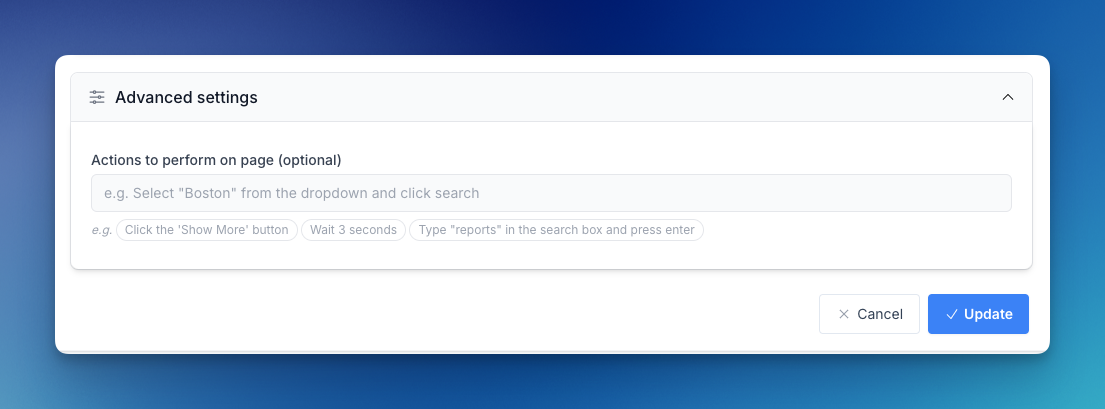
What you can do:
- Click buttons (like "Show More" or "Load Results")
- Fill in forms and search boxes
- Select from dropdowns
- Wait for content to load
- Perform multi-step interactions
Perfect for:
- Price comparison sites that require selecting options
- Search results that need queries
- Content hidden behind "Show More" buttons
- Forms that filter or reveal information
Just describe what you want in plain English: "Select 'Boston' from the city dropdown and click search" or "Click the 'Show More' button and wait 3 seconds".
This opens up monitoring for thousands of pages that were previously impossible to track.
Smarter email notifications
We've completely redesigned how change notification emails work to make them more useful and actionable.
What's new:
- New links extracted and listed - When tracking pages with lots of links (news sites, job boards, etc.), we now extract and display new links in a clean list format
- Better summaries - AI-generated summaries are now more concise and focused on what actually changed
- Tags displayed - Your tags now appear in emails so you can quickly identify which sources changed
- Cleaner layout - Better visual hierarchy makes it easier to scan multiple changes
These improvements make it much faster to triage your changes, especially if you're monitoring dozens or hundreds of pages.
Perfect for staying on top of competitor updates, industry news, and regulatory changes without drowning in noise.
Knowledge base launched
We've launched a comprehensive knowledge base to help you get the most out of Changeflow.
What's included:
- Getting started guides - Quick setup instructions for new users
- Feature tutorials - Deep dives into specific features like selectors, actions, and filtering
- Troubleshooting help - Solutions for common issues
- Best practices - Tips for monitoring different types of sites effectively
- Use case examples - Real-world scenarios for competitor tracking, regulatory monitoring, and more
The knowledge base is searchable, well-organized, and includes screenshots and examples throughout.
Whether you're brand new or a power user, you'll find helpful resources to track changes more effectively.