
Compare PDF documents using Adobe Acrobat, free online tools, or the command line. Then automate ongoing tracking so silent PDF changes never blindside you.

How to Compare PDF Documents
A tax preparer in Ohio learned how to compare PDF documents the hard way. She updated her filing software in March, ran the new state return form through it, and the software refused to file. She had done this for six years without trouble. Ohio had quietly shifted two field positions on the form between January and March. The PDF URL was the same. The filename was the same. The 4,000 returns sitting in her queue were now invalid.
That is the thing about PDF changes. They rarely come with a press release. The URL stays. The filename stays. The cover page stays. Somewhere on page 14, a number changes. By the time you notice, you have already acted on the old version.
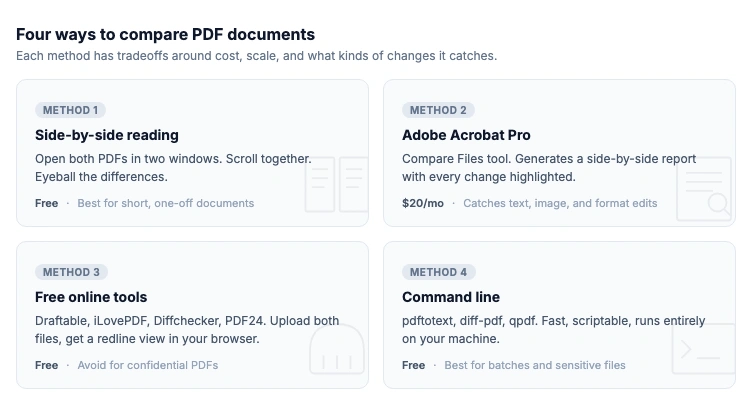
This guide covers four reliable ways to compare PDF files, from manual side-by-side reading to free online tools, Adobe Acrobat, and the command line. Then it covers the bigger problem none of those methods solve: knowing when a PDF has changed in the first place.
In this guide, you'll learn:
- The four reliable methods for comparing two PDFs
- Which free PDF comparison tools handle scanned files and which do not
- When manual document comparison stops working
- How to set up automated PDF tracking with alerts
When Comparing PDFs Actually Matters
Comparing two random PDFs is a school exercise. Comparing the right two PDFs at the right time is a business problem. Here is where the question shows up in real work.
State tax forms. Most state revenue departments update tax forms annually. Some update them mid-year when legislation changes. If your tax software, payroll system, or filing automation depends on field positions, a small change to a state form can break everything downstream. The forms live on .gov sites with stable URLs. Nobody emails you when they update.
Vendor contracts and terms of service. Your SaaS vendors update their terms. Procurement signed a contract referencing a specific version of the supplier's terms PDF, and now that PDF says something different. Most legal teams find out only when an issue surfaces, by which point the contract argument is much weaker.
Interest rates buried in financial product PDFs. Banks publish key facts documents, deposit account terms, and loan disclosure PDFs. Rates and fees are inside the document, not on the page that links to it. A change from 4.85% to 4.40% in a savings rate sheet will not trigger any alert from the bank's website. You have to read the PDF.
Insurance policy wording. Insurers update master policy documents and endorsement forms regularly. Brokers, comparison sites, and corporate risk teams need to know when wording changes around exclusions, deductibles, or claim procedures. The old policy and the new one share a name. The differences are in the text.
Regulatory guidance documents. FDA guidance, OCC bulletins, FCA handbooks, state insurance department circulars. Most are published as PDFs. Many are updated quietly, without a fresh entry in the formal register. Compliance teams that monitor only the index page miss the actual changes inside the documents. This is the gap that drives most of the regulatory compliance examples where teams find out about a guidance change weeks after it landed.
Forward notices from financial institutions. Banks, custodians, and clearing houses send notices about fee changes, custody policy updates, or operational changes. Often these arrive as PDF attachments to bulletins or get posted in member areas. Comparing this quarter's notice to last quarter's catches what the cover email glosses over.
Monitor regulatory pages automatically
Changeflow watches agency websites and tells you what changed and why it matters.
Free plan available. No credit card required.
Method 1: Side-by-Side in Two Windows
The simplest way to compare two PDFs for differences. Open both files. Drag them to opposite halves of your screen. Scroll through together.
This works for short documents you have never seen before. It does not work for anything past about ten pages, anything where the changes are formatting rather than text, or anything you need to do more than once. Your eyes lie. By page eight you are skimming. The two-character change on page nine slides past unnoticed.
Use this method for a contract redraft your lawyer just sent over. Do not use it for anything you might need to defend later.
Method 2: Adobe Acrobat Pro Compare Files
Adobe's Compare Files tool is the gold standard for one-off PDF document comparison. Open Acrobat Pro, choose All tools > Compare files, drop the old version on the left and the new version on the right, and Acrobat generates a side-by-side report with every change highlighted.
It catches text changes, image swaps, formatting differences, annotation edits, and even moved content. You can filter by change type, jump between differences, and export a summary report. For a one-time comparison of two important documents, nothing else is as thorough.
The catch: Acrobat Pro costs around $20 per month, the comparison only works on PDFs you already have, and it is a manual operation every time. Drop two files in. Read the report. Repeat.
Acrobat is the right choice when you have both versions of a critical PDF and you need a defensible diff right now. It is the wrong choice when the PDF lives on a website and you do not have the previous version saved.
Method 3: Free Online PDF Comparison Tools
Several browser-based tools handle PDF comparison without a subscription. Each has tradeoffs around file size, privacy, and result quality.
Draftable is the most polished free option. Upload both files, get a side-by-side redline. It handles PDFs up to 300 pages well and keeps formatting visible. There is also a paid desktop version for documents you would rather not upload to a browser tab.
iLovePDF does basic PDF comparison alongside its other PDF tools. The result view is simple and the comparison engine is less detailed than Draftable, but it is fast and the interface is friendly.
Diffchecker started as a text diff tool and added PDF support later. It handles smaller files quickly and shows results in a familiar diff format. Better when you mostly care about text.
PDF24 is the most privacy-conscious free option. Files process locally in your browser rather than on a server. Useful for sensitive documents you cannot legally upload to a third party.
For all of these, the same warnings apply. Free tools choke on scanned PDFs without OCR. Anything sensitive should not be uploaded to a public web tool. And every comparison is still a manual operation, one PDF pair at a time.
Method 4: Command Line for Power Users
If you compare PDF versions regularly, the command line is faster and more flexible than any UI.
pdftotext (part of Poppler) extracts text from a PDF. Pipe both versions to a text file, then run diff on them. This catches text changes accurately but ignores formatting and images. Works on any operating system, scriptable, free.
diff-pdf is a dedicated visual PDF diff tool that highlights pixel-level differences between two files. Useful when you care about layout and formatting changes too. Slower than text-only methods.
qpdf lets you inspect PDF structure, useful for spotting metadata changes, font substitutions, or embedded file updates that visual comparison misses.
Command-line document comparison software is the right choice when you need to script comparisons across many documents, integrate PDF diffs into a CI pipeline, or work with files too sensitive to upload anywhere. It is the wrong choice when you want a clean visual report you can share with a non-technical colleague.
When Manual PDF Comparison Stops Working
Every method above has the same fundamental limit. You need both versions of the PDF, and you need to remember to compare them.
That is fine for a contract negotiation where the other side emails you a redraft. It fails completely in the situations that actually matter.
You do not have the previous version. The PDF lives on a vendor's website or a regulator's portal. Each time you visit, you see the current version. You cannot compare to last month because you did not save last month.
You do not know when it changed. There is no notification. No press release. No email. The publisher updates the file in place, the URL stays the same, and your only signal is reading the document fresh every time and trying to remember what was different.
You are tracking too many documents to check manually. A compliance team watching twenty agency guidance PDFs. An insurance broker watching forty competitor rate sheets. A procurement team watching every vendor's terms PDF. Manual checking on a weekly cadence either burns hours every Friday or skips quietly when things get busy.
You need to know within hours, not next quarter. The state tax form change in our opening story was caught at year-end. By then, hundreds of returns had been processed against the wrong template. The damage was done before anyone compared anything.
This is where one-off PDF comparison tools stop being enough. You do not need a better diff viewer. You need something that watches the PDF for you and tells you the moment it changes.
Automated PDF Comparison and Alerts
Automated PDF tracking does two things manual tools cannot. It remembers the previous version for you. And it watches the live URL on a schedule. When the PDF at that URL changes, the tool computes the diff, reads the changes, and sends a summary.
Changeflow does this for the PDFs your team needs to watch. Point it at the URL where a PDF lives, describe what you care about ("alert me when rate tables change", "notify me when eligibility criteria are amended"), and it checks the file daily. When a new version appears, the AI compares it to the previous version, filters out routine reformatting, and sends a one-paragraph summary of what actually changed.
The same approach works for tracking website changes, monitoring competitor websites, and regulatory change management. PDFs are just documents that happen to live at a URL. The pipeline reads them, compares them, and tells you what matters.
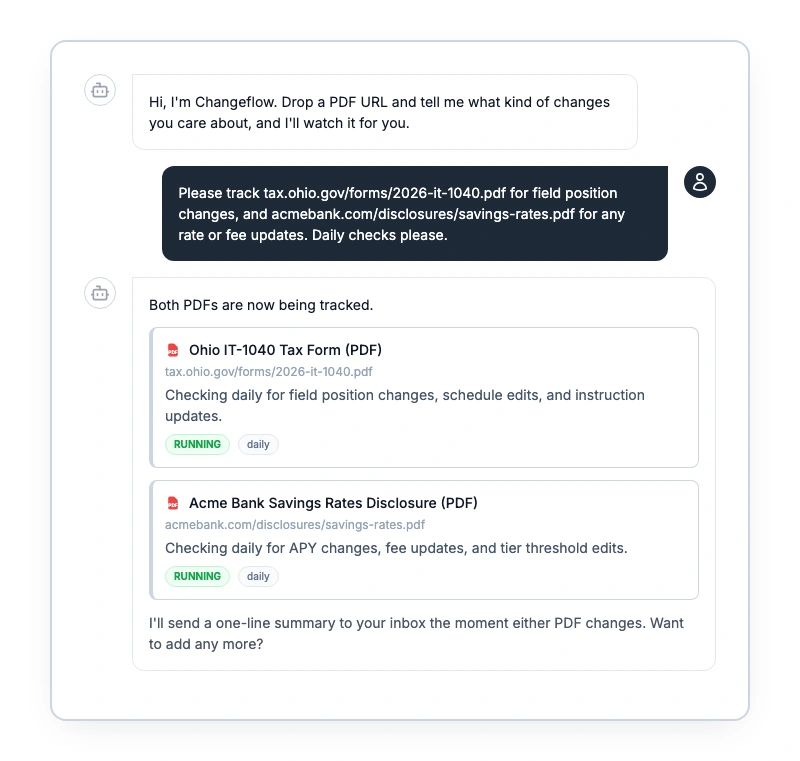
This is what teams in legal compliance, healthcare, and financial services use to keep up with regulatory PDFs without reading every document themselves. It is also how the tax preparer in our opening story would have caught the form change in March, the day Ohio updated it, instead of November when 4,000 returns broke.
Setting Up Automated PDF Tracking
The setup for automated PDF tracking is short. Three steps.
Step 1: Find the canonical URL. Not the page that links to the PDF. The actual .pdf URL. Right-click the download link, copy address, paste into a browser. If the PDF loads, that is your URL. If you get a 404 or a redirect, the publisher is gating the document and you will need to monitor the parent page instead.
Step 2: Describe what you care about. This is where automation earns its keep. Telling Changeflow "monitor this insurance policy PDF for changes to deductible language, exclusion clauses, or claim procedures" is different from telling it "monitor this PDF for any change." The first filters out cosmetic edits. The second buries you in noise. Teams maintaining regulatory compliance usually start with the specific risk language they care about, not with "everything."
Step 3: Choose a frequency. Daily for fast-moving documents like rate sheets and regulatory bulletins. Weekly for vendor terms and stable policy documents. Monthly for documents that change rarely but matter when they do.
After that, alerts arrive in email, Slack, or Microsoft Teams whenever the PDF changes. Each alert includes a one-sentence summary of what changed and a link to the full diff. No more manual side-by-side. No more remembering to check. No more Friday afternoons spent eyeballing twenty documents to track changes in PDFs by hand.
What Good PDF Monitoring Looks Like
A team that has done this well has a list of PDFs that matter, a tool that watches each one, clear instructions about what kinds of changes to flag, and alerts that route to the people who need them. The legal team gets contract changes. The compliance team gets regulatory updates. The pricing team gets competitor rate sheets. Nobody opens a PDF unless something has actually changed.
For larger operations this is the same workflow patterns covered in our guide to compliance monitoring software: map your sources, automate the watching, route alerts to the right human, review on a schedule. PDFs are one part of that. The other parts are web pages, RSS feeds, and structured data. The tooling overlaps.
Compared to manual checking, the difference is hours per week and the absence of "we missed that" conversations.
Frequently Asked Questions
What is the best free tool to compare PDF documents?
Draftable is the most polished free online option for general PDF comparison. Adobe Acrobat Pro is the gold standard if you already have the subscription. PDF24 is the best choice for sensitive files because it processes them locally in your browser. For ongoing tracking rather than one-off comparison, Changeflow offers a free trial that watches PDFs at their source URL and alerts you when they change.
Can I compare scanned PDF files?
Yes, but you need OCR first. Scanned PDFs are images, so text-only tools like pdftotext and Diffchecker will not work. Adobe Acrobat Pro includes OCR built in. For free options, run the scanned PDF through an OCR service first, then compare the resulting searchable PDF with any of the standard tools.
How do I track changes in a PDF that lives on a website?
Use a website monitoring tool that handles PDF tracking. Point it at the PDF URL and set a check frequency. When the file at that URL changes, the tool computes the diff and sends an alert. This catches updates that the publisher never announces and beats checking the page manually every week.
What is the difference between comparing PDFs and tracking PDF changes?
Comparing PDFs is a one-time operation between two files you already have. Tracking PDF changes is an ongoing process where a tool watches a PDF at its source URL on a schedule and alerts you when it updates. Comparison answers what is different. Tracking answers whether anything changed in the first place.
Are online PDF comparison tools secure for confidential documents?
Most upload your file to a server for processing, which is fine for public documents but risky for confidential ones. PDF24 processes files locally in the browser. Adobe Acrobat Pro and command-line tools like pdftotext run entirely on your machine. For sensitive PDFs, stick to local tools or a trusted enterprise service with a clear data policy.
The Real Question
Most articles about how to compare PDF documents stop at "here are the tools." That is the wrong stopping point. The interesting question is not whether you can compare two PDFs. The interesting question is whether you will know to compare them in the first place.
For documents you handle once, any of the methods above will do. For documents that affect your business on an ongoing basis, regulatory guidance, insurance wording, vendor terms, rate sheets, government forms, manual comparison is a trap. You will catch the easy changes and miss the ones that matter. The fix is not a better diff viewer. It is a system that watches the PDFs you care about and tells you when something has actually changed. That is what change detection and regulatory intelligence are really for.
Stop reading every PDF twice
Point Changeflow at a PDF URL. Get a one-line summary every time it changes.
Try Changeflow FreeNo credit card required
More from Learn

Wayback Machine for Legal Research: A Law Librarian's Guide
Half the URLs in old briefs are dead. Here is how law librarians use the Wayback Machine and stronger archives to verify citations, build timelines, and support litigation.
Law Librarian Current Awareness Audit Checklist (2026)
A 27-question audit covering coverage, cadence, relevance, distribution, resilience, and value. Built for law librarians and knowledge lawyers running current awareness at Am Law 200 firms.
Audit-Ready Web Archives: SEC 17a-4, FDA, and HIPAA Rules
Free archive tools fail under regulatory audit. Here is what SEC 17a-4, FDA 21 CFR Part 11, and HIPAA require from a web archive that holds up under examination.