Changeflow lets you manually select specific areas of a page to monitor or ignore. This gives you fine-grained control over exactly which parts of a page trigger change notifications.
When editing a source, you'll find the area selection options in the Advanced Settings section:
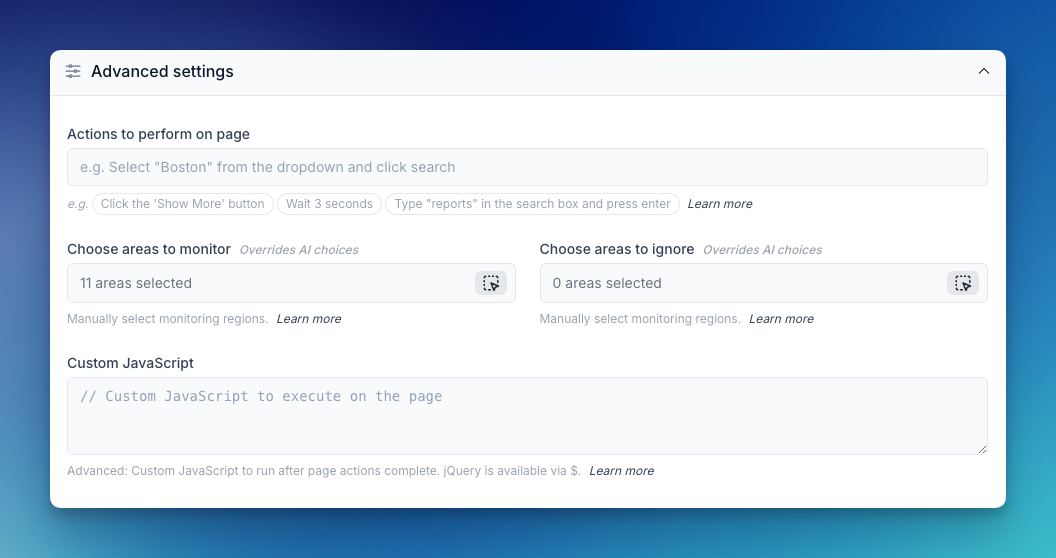
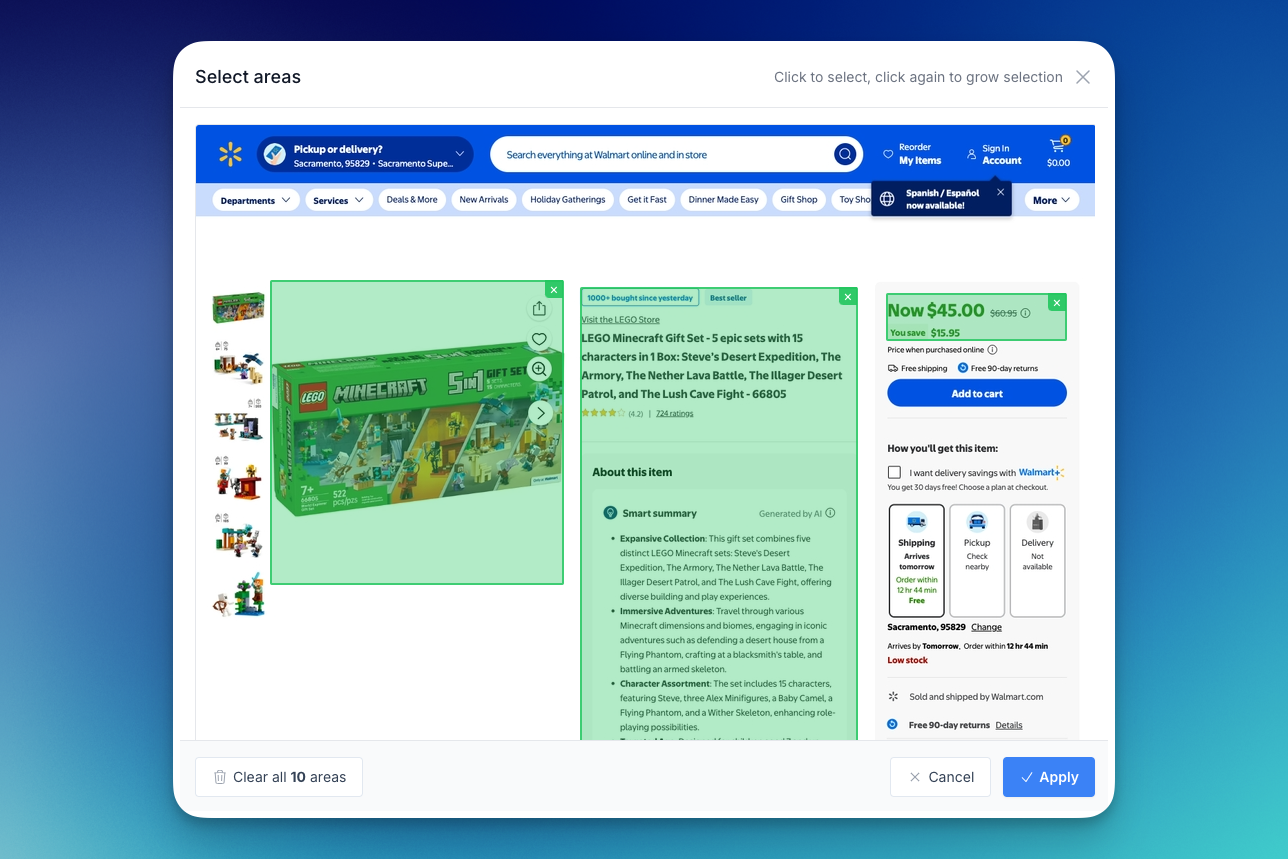
Clicking the button opens the selector interface where you can visually choose areas:
Monitor vs Ignore
There are two types of selections:
- Areas to Monitor - Only changes within these areas will be detected. Everything else on the page is ignored.
- Areas to Ignore - Changes within these areas won't trigger notifications. This only applies to content within your monitored area.
For example, if you select a product listing section to monitor, you might then choose to ignore the "last updated" timestamp within that section.
How It Works
AI Selection by Default
By default, Changeflow's AI automatically chooses which areas of the page to monitor based on your interests and the page content. You don't need to do anything - it just works.
When you edit a source and open the area selector, you'll see the AI's current choices highlighted with a dashed border. This shows you exactly what the AI has decided to monitor.
Overriding with Manual Selection
As soon as you make a manual selection, it overrides the AI's choices completely. Your manual selections take full control.
To make a selection:
- Edit your source and expand the Advanced Settings section
- Click "Choose areas to monitor" or "Choose areas to ignore"
- The page will load with clickable regions highlighted
- Click on areas to select them (they'll be highlighted)
- Save your changes
When to Use Manual Selection
Consider Updating Interests First
Before reaching for manual selection, consider whether updating your Interests field might be a better approach. Describing what you care about in plain language is often more resilient:
I'm interested in price changes and stock availability. Ignore the review count and last updated date.
This approach is better at "self-healing" because the AI fully understands your intention. If the page structure changes slightly, the AI can adapt. Manual selections are tied to specific page elements - if those elements move or change, the selection may break.
When Manual Selection Shines
Manual selection is the right choice when:
- You need precise control - The AI isn't quite selecting the right areas, even after updating interests
- You want guaranteed consistency - You need to be certain exactly which elements are monitored
- The page structure is complex - Multiple similar sections make it hard to describe in words
Using Tags as Templates
Manual selection becomes especially powerful when combined with tags. If you're monitoring many pages from the same website where the page structure is consistent across sources, you can:
- Create a tag for that website (e.g., "Amazon" or "Walmart")
- Configure area selections at the tag level - set the monitored and ignored areas once
- Apply the tag to all relevant sources
All sources with that tag will inherit the area settings automatically.
How Inheritance Works
- Source has no selections → Uses tag's selections (inheritance)
- Source has selections → Uses source's selections (override)
This is true for both "areas to monitor" and "areas to ignore" independently. A source could inherit monitor areas from a tag but have its own ignore areas, or vice versa.
The Template Advantage
This approach works like a template system:
- Set up once - Configure the perfect selection on the tag
- Apply to many - Every source with that tag uses the same settings
- Update once - If the website's structure changes, update the tag settings and all sources are fixed
This is far more efficient than manually configuring each source individually, especially when monitoring dozens or hundreds of similar pages.
Example: Monitoring Product Pages
Imagine you're tracking 50 product pages on a competitor's website. They all have the same structure: product title, price, description, reviews, and a sidebar with ads.
- Create a tag called "competitor-products"
- Edit the tag and configure:
- Monitor: The main product area (title, price, description)
- Ignore: The review count, sidebar ads, and "last viewed" timestamp
- Apply this tag to all 50 product sources
Now if the competitor redesigns their product pages, you only need to update the tag's area selection once - all 50 sources will automatically use the new settings.
Choosing Stable Selections
When manually selecting areas, choose structural layout elements rather than content-specific items. Your selections should be areas that stay consistent even as the page content changes.
Good selections (stable):
- Main content section of the page
- Price area or pricing table
- Product reviews section
- Navigation menu
- Article body container
- Search results container
Bad selections (brittle):
- A specific product review
- A specific search result item
- A particular paragraph of text
- Individual list items that may disappear
The difference is that structural elements like "the reviews section" will always exist on the page, even as individual reviews come and go. But if you select "the third review" specifically, your selection breaks when that review is no longer third - or no longer exists.
Think of it this way: select the container, not the content.
Tips
Start with AI, Refine if Needed
Let the AI make initial selections. Only switch to manual selection if the results aren't what you need.
Be Specific with Ignore Areas
Remember that ignore areas only work within monitored areas. If you're monitoring the whole page and want to ignore a sidebar, select the sidebar as an ignore area.
Test Your Selections
After setting up manual selections, trigger a manual check to verify you're capturing the right content. Check the change notifications to ensure you're getting what you expect.
Combine with Interests
You can use both manual selection AND interests together. Manual selection controls where to look, while interests help interpret what matters within those areas.