Custom JavaScript gives developers fine-grained control over page interaction and manipulation before Changeflow captures content. Write scripts using our built-in bg.* helper library, jQuery, or vanilla JavaScript.
This is an advanced feature for programmers. Most users should use Page Actions instead, which lets you describe interactions in plain English.
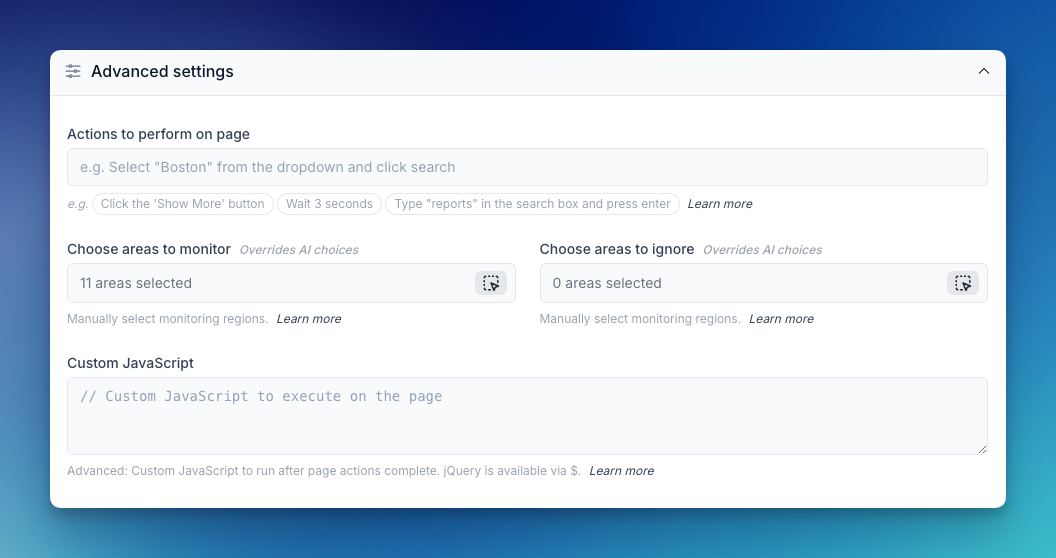
When editing a source, you'll find the Custom JavaScript field in the Advanced Settings section:
How It Works
Your JavaScript code runs directly in the browser at a specific point in Changeflow's process:
- Page loads fully (Changeflow waits for network activity to settle)
- Any natural language Page Actions execute
- Your Custom JavaScript runs here
- Changeflow waits for the page to stabilize after each line
- Page is analyzed and screenshotted
Each line of your code runs as a separate step. Between steps, Changeflow waits for network requests to finish, animations to complete, and the page to settle. This means you don't need to add manual waits after navigation or clicking.
The bg.* Helper Library
Changeflow injects a set of bg.* helpers into every page. These are the recommended way to interact with pages. They handle waiting, scrolling into view, and error detection automatically.
All bg.* methods support CSS selectors, XPath, or visible text:
// CSS selector
await bg.click('#submit-button');

// XPath (prefix with xpath= or bare //)
await bg.click('xpath=//button[text()="Submit"]');
await bg.click('//button[text()="Submit"]');
Clicking
// Click by CSS selector
await bg.click('#my-button');

// Click by visible text (buttons, links, any clickable element)
await bg.clickText('Show More');
await bg.clickText('Load All Results');

// Double click
await bg.dblclick('.editable-cell');
bg.clickText is the most resilient option. It finds buttons, links, and clickable elements by their visible text, so your script survives page redesigns.
Typing and Filling Forms
// Fill by label text (finds input by its label, placeholder, or name)
await bg.fillByLabel('Email Address', 'user@example.com');
await bg.fillByLabel('Password', 'secret123');

// Type character-by-character by label (for reactive forms that update as you type)
await bg.typeByLabel('Search', 'website monitoring');

// Fill by CSS selector (when labels aren't available)
await bg.fill('input[name="email"]', 'user@example.com');

// Type character-by-character by selector
await bg.type('input[name="search"]', 'query');
bg.fillByLabel and bg.typeByLabel are the most resilient options. They find inputs by their associated label text, aria-label, placeholder, or name attribute.
Dropdowns
// Native <select> dropdown - by label + visible option text
await bg.selectByLabel('Country', 'United States');
await bg.selectByLabel('State', 'California');

// Native <select> dropdown - by selector + visible option text
await bg.selectByText('select[name="country"]', 'United States');

// Native <select> dropdown - by selector + option value
await bg.select('select[name="country"]', 'US');

// Custom dropdown (React Select, Material UI, etc.)
// Clicks the trigger to open, then clicks the option by text
await bg.pickOption('.country-dropdown', 'United States');
Checkboxes
// Check/uncheck by label text (state-aware: only toggles if needed)
await bg.checkByLabel('I agree to the Terms');
await bg.uncheckByLabel('Send me marketing emails');

// Check/uncheck by selector
await bg.check('#agree-terms');
await bg.uncheck('#marketing-emails');
Navigation
// Go to a URL
await bg.goto('https://example.com/dashboard');

// Browser back/forward
await bg.goBack();
await bg.goForward();

// Reload
await bg.reload();

// Press Enter to submit a form (often the safest way to submit)
await bg.keypress('Enter');

// Other keys
await bg.keypress('Tab');
await bg.keypress('Escape');
Hover Menus
// Hover to reveal submenu, then click - using visible text
await bg.hoverTextAndClickText('Products', 'Pricing');

// Hover to reveal submenu, then click - using selectors
await bg.hoverAndClick('.nav-products', '.submenu a[href="/pricing"]');

// Simple hover
await bg.hover('.menu-item');
Scrolling
// Scroll to bottom of page
await bg.scrollTo(0, document.body.scrollHeight);

// Scroll to top
await bg.scrollTo(0, 0);

// Scroll down by a specific amount (pixels)
await bg.scrollBy(0, 500);

// Scroll an element into view
await bg.scrollIntoView('#pricing-section');
Waiting
// Wait for an element to appear
await bg.waitForSelector('.results-loaded', 10000);

// Wait for specific text to appear on the page
await bg.waitForText('Results found', 10000);

// Pause for a specific duration (milliseconds)
await bg.sleep(3000);

// Check if an element exists (no waiting, returns true/false)
if (bg.exists('.cookie-banner')) {
  await bg.click('.cookie-banner .accept');
}
Reading Values
// Get visible text from an element
bg.getText('.price');

// Get input value
bg.getValue('input[name="quantity"]');
jQuery and DOM Manipulation
jQuery is also available for direct DOM manipulation. This is useful for hiding elements, adding CSS classes, and other non-interactive changes:
// Hide elements
$('.cookie-banner').hide();

// Remove elements
$('.notification-popup').remove();
Special CSS Classes
Changeflow uses special CSS classes to control what content is included or excluded from change detection:
Exclude Content - Add changeflow-ignore to elements you want excluded:
$('.sidebar').addClass('changeflow-ignore');
$('.ads, .promo-banner').addClass('changeflow-ignore');
$('.last-updated').addClass('changeflow-ignore');
Include Content - Add changeflow-include to ensure elements are always captured:
$('.footer-info').addClass('changeflow-include');
$('.price-data').addClass('changeflow-include');
Complete Examples
Login and Navigate to Dashboard
await bg.fillByLabel('Email', 'monitor@company.com');
await bg.fillByLabel('Password', 'MonitorPass123');
await bg.keypress('Enter');
await bg.goto('https://app.example.com/reports');
Fill a Quote Form
await bg.fillByLabel('First Name', 'John');
await bg.fillByLabel('Last Name', 'Doe');
await bg.fillByLabel('Email', 'john@example.com');
await bg.selectByLabel('State', 'California');
await bg.selectByLabel('Coverage Type', 'Premium');
await bg.checkByLabel('I agree to the Terms');
await bg.clickText('Get Quote');
Load Dynamic Content and Clean Up
// Click through to content
await bg.clickText('Show All Results');

// Exclude noisy elements from change detection
$('.social-share, .related-articles').addClass('changeflow-ignore');
$('.timestamp, .view-count').addClass('changeflow-ignore');

// Ensure key data is always captured
$('.pricing-table, .availability').addClass('changeflow-include');
Navigate a Hover Menu
await bg.hoverTextAndClickText('Products', 'Enterprise');
Search and Filter Results
await bg.typeByLabel('Search', 'compliance updates');
await bg.keypress('Enter');
await bg.selectByLabel('Date Range', 'Last 30 days');
await bg.checkByLabel('Show archived');
Handle Optional Elements
// Dismiss cookie banner if present
if (bg.exists('.cookie-banner')) {
  await bg.clickText('Accept');
}

// Click "Load More" if available
if (bg.exists('.load-more')) {
  await bg.clickText('Load More');
}
Custom Dropdown (React Select, Material UI)
// These aren't native <select> elements, so use pickOption
await bg.pickOption('.region-selector', 'North America');
await bg.pickOption('.plan-dropdown', 'Enterprise');
Quick Reference
| Method | What it does |
|---|---|
bg.click(selector) |
Click an element by CSS/XPath selector |
bg.clickText(text) |
Click a button or link by its visible text |
bg.dblclick(selector) |
Double-click an element |
bg.fill(selector, value) |
Set an input's value instantly |
bg.fillByLabel(label, value) |
Fill an input found by its label text |
bg.type(selector, text) |
Type character-by-character (for reactive forms) |
bg.typeByLabel(label, text) |
Type by label, character-by-character |
bg.select(selector, value) |
Set a native dropdown by option value |
bg.selectByText(selector, text) |
Set a native dropdown by visible option text |
bg.selectByLabel(label, text) |
Set a native dropdown by label + visible option text |
bg.pickOption(trigger, text) |
Click-to-open custom dropdown, select by text |
bg.check(selector) |
Ensure a checkbox is checked |
bg.uncheck(selector) |
Ensure a checkbox is unchecked |
bg.checkByLabel(label) |
Check a checkbox found by label text |
bg.uncheckByLabel(label) |
Uncheck a checkbox found by label text |
bg.hover(selector) |
Hover over an element |
bg.hoverAndClick(hoverSel, clickSel) |
Hover to reveal, then click |
bg.hoverTextAndClickText(hoverText, clickText) |
Hover by text, click by text |
bg.keypress(key) |
Press a key (Enter, Tab, Escape, etc.) |
bg.goto(url) |
Navigate to a URL |
bg.goBack() |
Browser back button |
bg.goForward() |
Browser forward button |
bg.reload() |
Reload the page |
bg.scrollTo(x, y) |
Scroll to a position |
bg.scrollBy(x, y) |
Scroll by an amount |
bg.scrollIntoView(selector) |
Scroll element into view |
bg.waitForSelector(selector, ms) |
Wait for element to appear |
bg.waitForText(text, ms) |
Wait for text to appear on page |
bg.sleep(ms) |
Pause execution |
bg.exists(selector) |
Check if element exists (returns true/false) |
bg.getText(selector) |
Get an element's visible text |
bg.getValue(selector) |
Get an input's current value |
bg.focus(selector) |
Focus an element |
Tips
Use Text-Based Methods When Possible
Methods like bg.clickText, bg.fillByLabel, and bg.selectByLabel find elements by what's visible on the page. They survive site redesigns because button labels and form field names rarely change, even when the underlying HTML structure does.
Combine with Page Actions
Custom JavaScript runs after natural language Page Actions. Use Page Actions for complex interactions (login, multi-step workflows) and Custom JavaScript for fine-tuning:
-
Page Actions:
Login with user@example.com password123, click Reports -
Custom JavaScript:
$('.ads').addClass('changeflow-ignore');
Test in Browser DevTools
Test your selectors in your browser's DevTools console. CSS selectors and XPath both work. You can test bg.* helpers by pasting this pattern:
document.querySelector('.my-selector')  // CSS
document.evaluate('//button[text()="Submit"]', document, null, 9, null).singleNodeValue  // XPath
Automatic Stabilization
Changeflow waits for the page to stabilize between each line of your script. You don't need to add bg.sleep() after navigation or clicks unless you specifically need an extra delay for slow-loading content.
Tag-Level Custom JavaScript
You can configure Custom JavaScript on tags as well as individual sources. This is useful when monitoring many pages from the same website that need the same interactions.
- Source has no custom JS → Uses tag's custom JS (inheritance)
- Source has custom JS → Uses source's custom JS (override)
Setting custom JavaScript on a tag means all sources with that tag will run that script automatically, unless a source has its own script defined.
Troubleshooting
Script not running: Check your JavaScript syntax. Missing semicolons, unmatched brackets, or typos will prevent execution.
Element not found: Verify your selectors match the page structure. Use bg.exists() to check before interacting with optional elements.
Timing issues: Changeflow waits between steps automatically, but some pages need extra time. Add await bg.sleep(3000) if content isn't loading fast enough.
Changes still detected in excluded areas: Place your addClass('changeflow-ignore') calls early in your script, before any interactions that might trigger content changes.
Your Custom JavaScript code is encrypted in our database for security.