The Changeflow Chrome extension lets you subscribe to any web page without leaving the site you're browsing. Click the icon, tell us what to watch for, and you're done. It's the fastest way to start tracking changes.
Installing the Extension
From the Chrome Web Store
- Visit the Changeflow extension page in the Chrome Web Store
- Click Add to Chrome
- Confirm by clicking Add extension in the popup
- You'll see the Changeflow icon appear in your browser toolbar
Tip: If you don't see the icon, click the puzzle piece icon in Chrome's toolbar and pin Changeflow for easy access.
Browser Compatibility
The extension works with any Chromium-based browser:
- Google Chrome
- Microsoft Edge
- Brave
- Opera
- Vivaldi
- Arc
Tracking a Page
Step 1: Navigate to Any Page
Browse to the page you want to monitor. This could be a competitor's pricing page, a news site, a job listings page, or anything else on the web.
Step 2: Click the Extension Icon
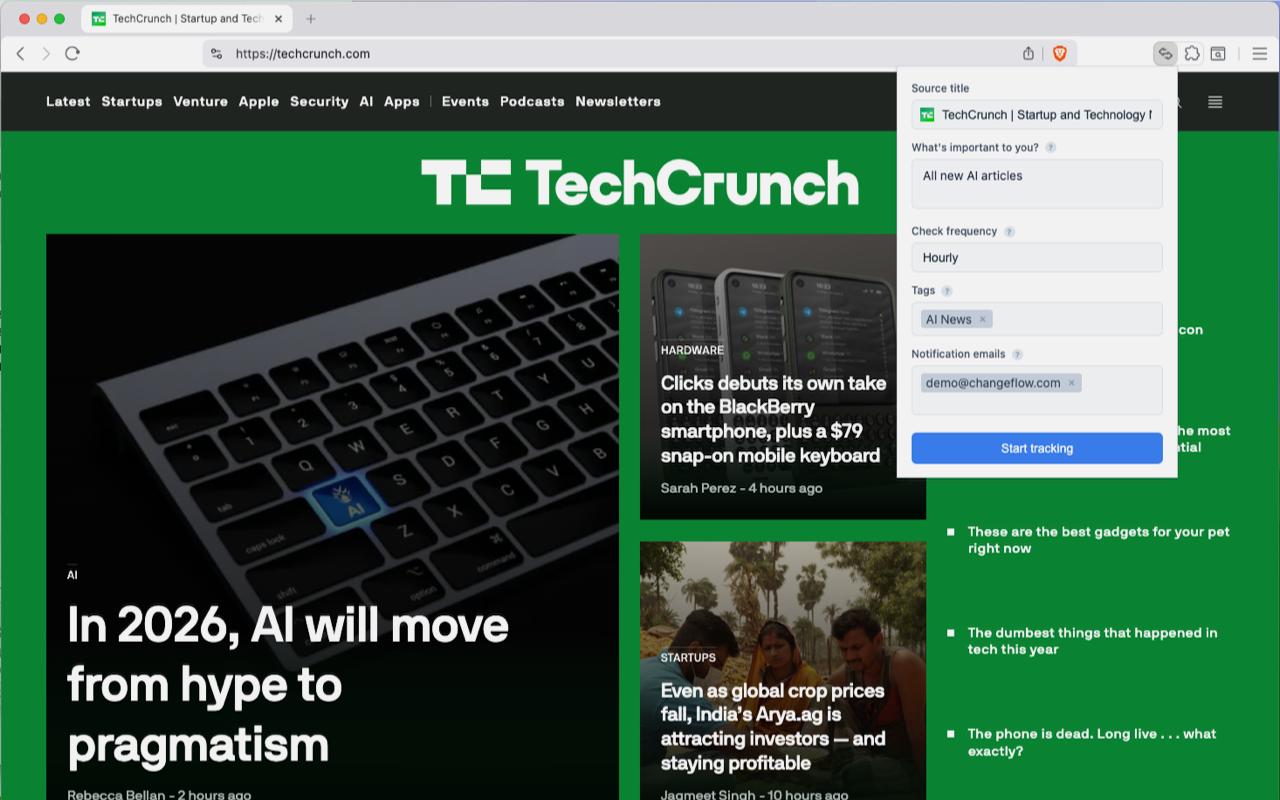
Click the Changeflow icon in your browser toolbar. The extension popup will appear.
Step 3: Configure Your Tracking
You'll see a form with these options:
Source title: We auto-fill this from the page title, but you can edit it to something more meaningful like "Competitor X Pricing" or "FDA Guidance Updates".
What's important to you?: Tell us what you're looking for. Be specific - "price changes" or "new job postings" helps our AI focus on what matters to you.
Check frequency: Choose how often we should check the page:
- Hourly - For fast-moving pages where timing matters
- Daily - Good for most use cases
- Weekly - For pages that rarely change
Tags: Add tags to keep your sources organized. Useful if you're tracking many pages.
Notification emails: Choose where to send alerts. You can add multiple email addresses.
Step 4: Click "Start tracking"
Hit the button and you're done. The page is now being monitored. You'll receive email notifications whenever something changes.
Viewing Recent Changes
When you visit a page you're already tracking, the extension shows you recent updates right in the popup.
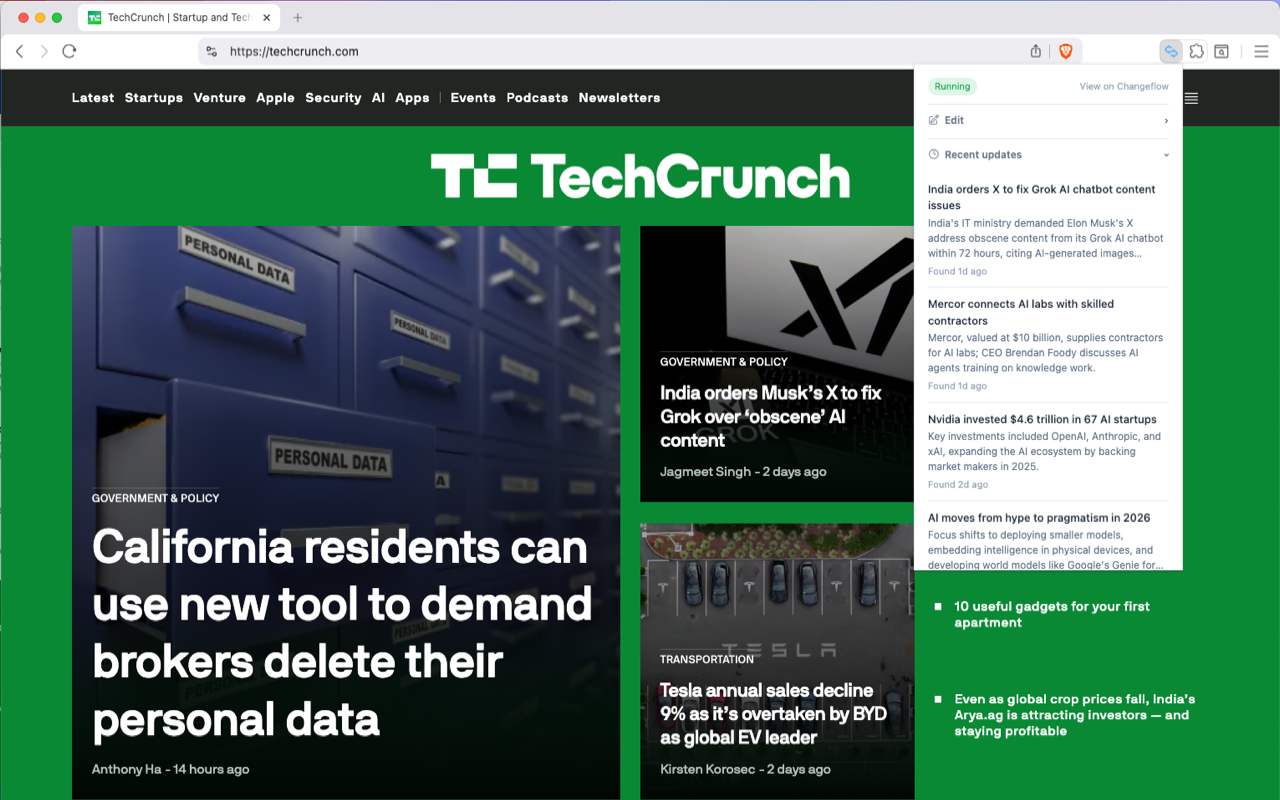
You'll see:
- Status badge - Shows "Running" when the source is active
- Edit button - Quick access to modify settings
- Recent updates - AI-generated summaries of what changed and when
Click any update to see more details, or click View on Changeflow to open your full dashboard.
Editing a Tracked Source
To change settings for a tracked page:
- Visit the page in your browser
- Click the extension icon
- Click Edit at the top of the popup
- Modify the title, prompt, frequency, or other settings
- Click Save changes
You can also manage all your sources from the Changeflow dashboard.
Stopping Tracking
To stop monitoring a page:
- Visit the page in your browser
- Click the extension icon
- Click Stop tracking at the bottom of the popup
- Confirm the deletion
The source will be removed and you won't receive any more notifications for that page.
Extension Icon States
The extension icon changes to show you at a glance whether you're tracking the current page:
- Outline icon - You're not tracking this page
- Filled icon - You're already tracking this page
This makes it easy to spot which pages in your browsing are being monitored.
Troubleshooting
"Please log in" message
If you see a login prompt when opening the extension:
- Make sure you're logged into changeflow.com in the same browser
- Try logging out and back in to Changeflow
- Close and reopen the extension popup
The extension uses your Changeflow session, so you need to be logged in to the website for it to work.
Extension icon doesn't appear
If you can't see the extension icon:
- Click the puzzle piece icon in Chrome's toolbar
- Find Changeflow in the list
- Click the pin icon to keep it visible
"Quota exceeded" message
If you see this message, you've reached your plan's source limit. You can:
- Upgrade your plan for more sources
- Delete some existing sources to make room
- Visit your sources to review what you're tracking
Changes not being detected
If a source isn't detecting changes you expected:
- Check that the page content is actually different (some changes are visual only)
- Try adjusting your "What's important to you?" prompt to be more specific
- Verify the page isn't behind a login or paywall
- Contact support if the issue persists
Extension not working on certain sites
Some sites may block browser extensions or require special handling:
- Sites behind logins won't work unless you use our authenticated monitoring features
- Some complex pages may need priority handling, available on Business plans
- Internal/intranet sites aren't accessible to our servers
Syncing with Your Dashboard
Everything you set up through the extension syncs automatically with your Changeflow dashboard. You can:
- View all your sources at changeflow.com/sources
- See detailed change history and diffs
- Export data and set up integrations
- Share sources with team members (on team plans)
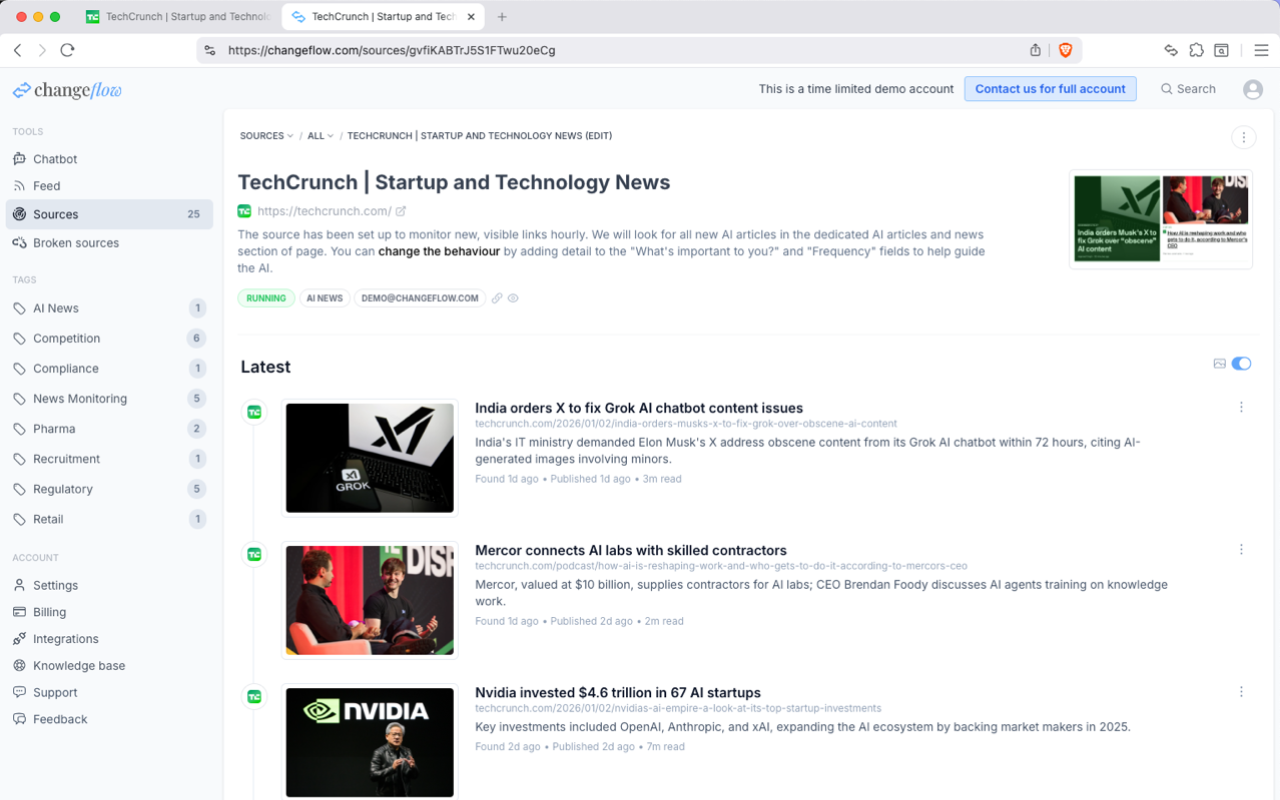
The extension is just a quick way to add sources - all the advanced features are available in your full dashboard.
Getting Help
Having trouble with the extension?
- Email: hello@changeflow.com
- Knowledge base: Browse more guides at changeflow.com/kb
- Landing page: Learn more at changeflow.com/extension
We typically respond within a few hours during business hours.